



TrafficBotPro for SEO Human Like Search and Click Automation
A search visit starts before someone reaches your website. It begins with a keyword, continues through the search engine results page, and develops into clicks, scrolling, and browsing after the page loads.
TrafficBotPro (TBP) lets you automate this search-to-website journey for SEO workflows. Configure keyword searches, enable mouse-driven clicks, simulate character-by-character typing, and define what happens after the browser reaches your target URL. Percentage-based device groups help you generate varied browser profiles without configuring every browser manually.
Set Up Your Keywords and Target URL
In Task Settings, define where the search starts and which website the task should find.
- Load URL: The starting page, such as Google.
- Target URL: The website or page to locate in the search results.
- Keyword: The search term used to find that target.
- Max Page: The pagination limit while searching through result pages.
- Limit Task Thread Max: The maximum number of concurrent task threads.
The example uses Google, the keyword trafficbotpro, and the target trafficbotpro.com, with Max Page set to 3. Real Click and JS Simulated Input are both enabled.
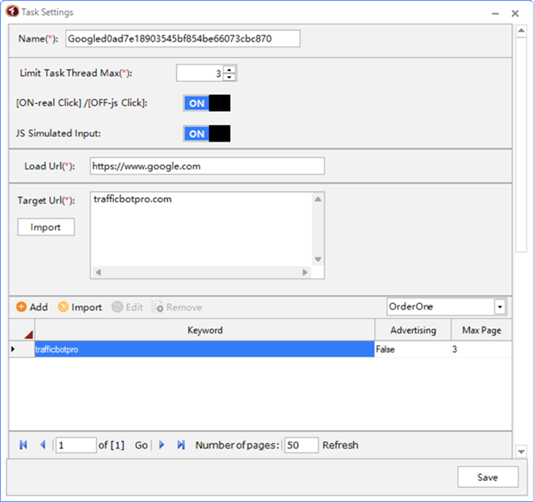
Figure 1. Configure the search engine, target URL, keyword, and interaction settings.
Enable Real Click for Mouse Driven SERP Clicks
A search engine results page, or SERP, is where the search turns into a website visit. With Real Click enabled, TrafficBotPro controls the mouse to click the target result on the SERP.
The task opens the configured search engine, searches for the selected keyword, and locates the target result. It can paginate within the configured limit when needed, then move the mouse to the result, click it, and continue to the destination website.
This gives you control over a key transition in the simulated search journey: moving from a keyword query to a visit through the target search listing.
Use JS Simulated Input for Gradual Typing
With JS Simulated Input enabled, TBP enters the keyword one character at a time. The text builds progressively in the search field, reproducing the visible sequence of typing a query.
In the demonstration, the keyword develops from a few letters into the complete term while Google autocomplete suggestions update beneath the search box. JS Simulated Input controls query entry; Real Click controls how the target result is clicked. Together, they provide a more detailed simulation of searching and selecting a result.
Watch the Search Journey in Action
The demonstration shows Google opening, the keyword being entered progressively, the results loading, and scrolling within the SERP. The browser returns toward the top, clicks the TrafficBotPro listing, and opens the website.
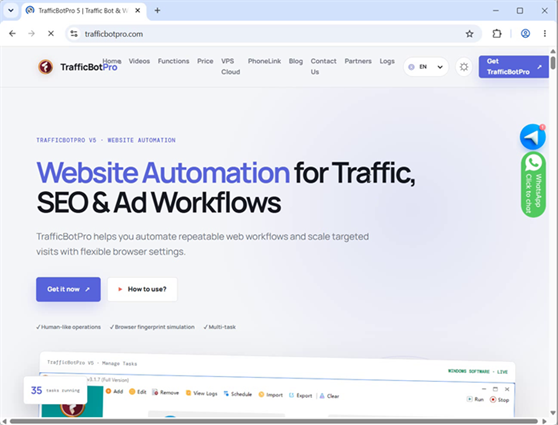
Figure 2. The destination website opens after the target search result is clicked.
Open the search and click demonstration video
Customize What Happens After the Click
Reaching the target URL is one stage of the workflow. TrafficBotPro's Operations editor lets you define how the browser interacts with the destination page.
Available actions include clicking elements, scrolling, moving the mouse, and waiting between steps. Combine them into a sequence that fits the page you are visiting. For example:
- Click a page element and wait briefly.
- Scroll through the content and pause.
- Click another element.
- Move the mouse randomly, then wait before continuing.
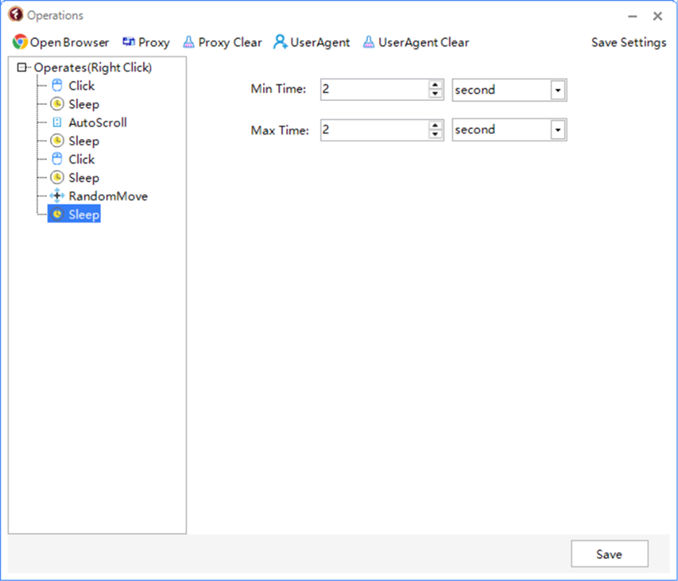
Figure 3. Combine clicks, scrolling, mouse movement, and pauses in the Operations editor.
The illustrated configuration includes Click, Sleep, AutoScroll, and RandomMove steps. The selected Sleep action shows minimum and maximum timing fields, giving you control over pauses within the sequence.
Different pages invite different browsing behavior. An article may call for scrolling and reading pauses, while a page with several sections may involve additional clicks. Random element clicks and random mouse movement introduce variation into the interaction pattern.
These controls let you extend a simulated search visit with configurable browser activity after arrival.
Configure Browser Profiles with Simple Device Ratios
Browser behavior is one part of the setup. The browser environment is another. TrafficBotPro's Device Group settings let you define a mix of devices and operating systems using percentages.
With Auto Create enabled, TBP can generate browser profiles according to those preferences. The available controls include:
- Desktop and mobile proportions.
- Windows and macOS proportions for desktop profiles.
- Android and iOS proportions for mobile profiles.
- Chrome version preferences and optional language selection.
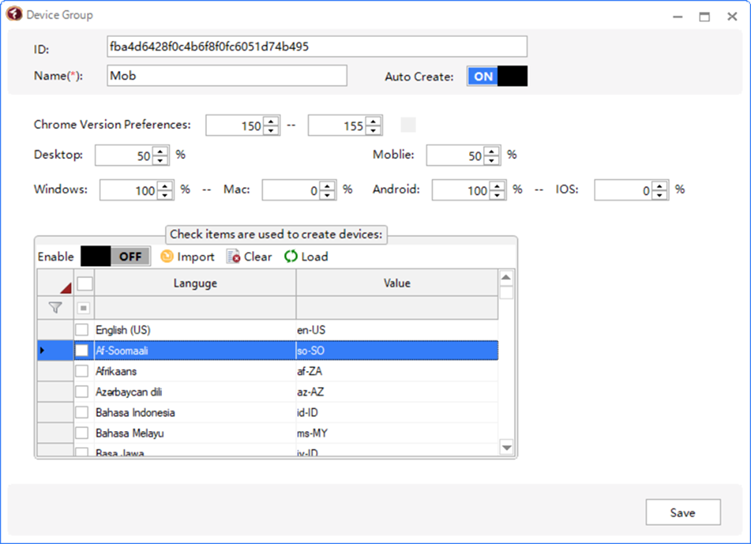
Figure 4. Define device proportions and generate browser profiles automatically.
The example shows a 50% desktop and 50% mobile configuration. Within that setup, the desktop operating system preference is Windows, and the mobile preference is Android.
Define the distribution you need, then let TBP generate varied profiles from those settings. Each browser can use its own generated profile, reducing the amount of manual configuration required.
This approach makes it easier to manage the browser mix across a task while retaining access to individual profile settings when you need more control.
Fine Tune Individual Browser Profiles
Individual Device Settings provide controls for the operating system, user agent, platform version, cookies, and proxy configuration. A Random Profile button offers another way to generate a profile.
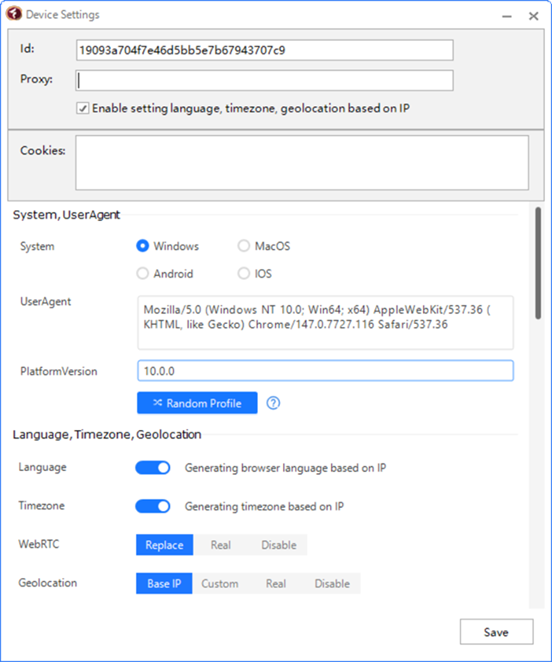
Figure 5. Adjust individual profiles and IP based environment settings.
The interface also includes options to set language, timezone, and geolocation based on IP, alongside WebRTC controls. Used together, these settings help you configure a more coherent browser environment.
Build Your SEO Search Workflow with TrafficBotPro
Start with your keyword and target URL, enable the input and click settings you need, then define the page interactions and device mix for your task. TrafficBotPro gives you practical control over the simulated journey from the first search character to activity on your website.
Explore TrafficBotPro and configure your search and click workflow
Frequently Asked Questions
What Real Click means in TrafficBotPro
Real Click means TBP controls the mouse to click the target search result. The word real describes the click method; the session remains automated.
What Max Page controls
Max Page limits pagination while the task searches for the target URL in the search results. It helps keep the search within a defined scope.
Actions after opening the target website
The Operations editor lets you configure actions such as element clicks, scrolling, random mouse movement, and pauses.
Automatic browser profile configuration
Device Groups support automatic profile creation using percentage-based device and operating system preferences. Individual profiles also have their own settings.