



Google Shopping Ads Automation with TrafficBotPro
A shopping journey often continues well beyond the first product click. Someone searches for an item, opens a merchant’s page, scrolls through the details, and follows another link to explore more.
TrafficBotPro helps you automate that connected browsing experience. You can start with a Google Shopping search, identify the merchant you want to reach, and continue with configurable actions on the destination website.
With mouse-driven clicks, random link selection, scrolling, and pauses, TBP gives you control over both how the browser arrives and what it does next.
From a Product Search to the Right Merchant
The workflow starts with a keyword.
Enter a product query relevant to your task, then configure TBP to look for a Shopping result associated with your chosen merchant. The tutorial uses “vitamin D spray,” but the same setup approach applies to the product searches you want to configure.
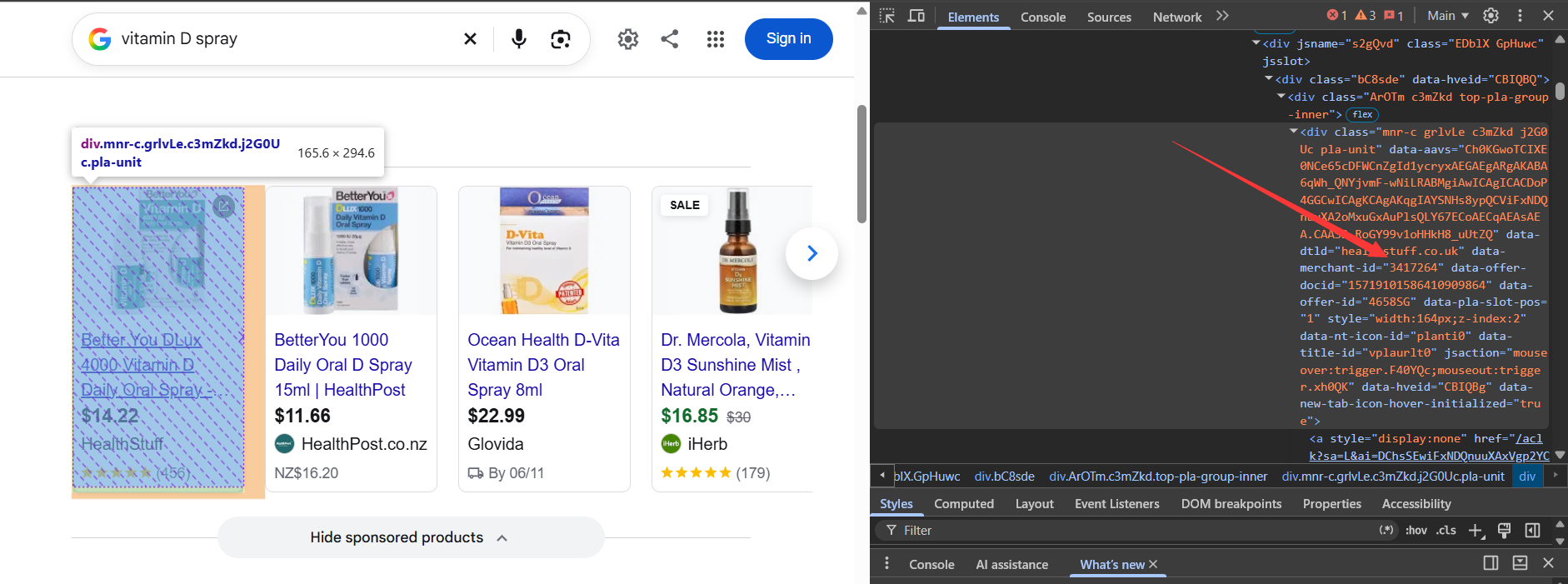
Google Shopping can display similar products from several sellers. To identify the intended merchant, the workflow uses a Merchant ID.
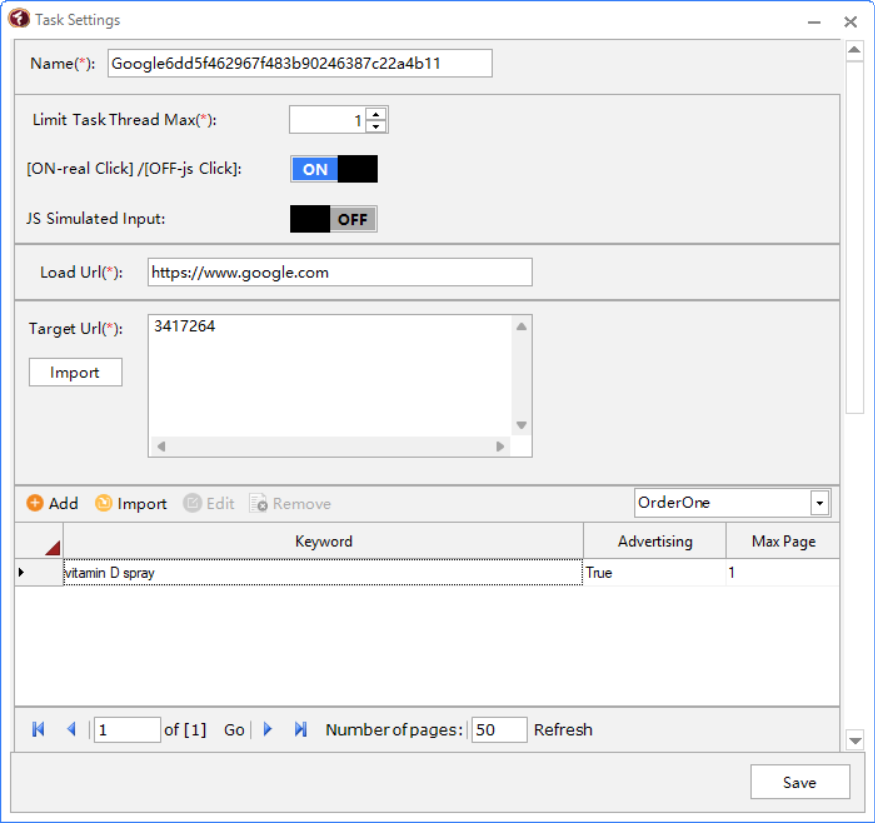
You can find this value by inspecting the relevant product card in Google’s Sponsored Products section and locating its data-merchant-id attribute. Copy the number and paste it into the Target URL field in TBP’s Task Settings for this Shopping workflow.
Although the field is labeled Target URL, this setup uses the merchant number as its matching value. A merchant may have several products in the results, so the ID identifies the seller rather than one specific product.
Once the merchant is set, add your keyword, enable the Advertising option, and choose how many results pages the task can search.
These settings establish the route: search for the product, find a matching merchant result, and continue to the website.
Use Real Mouse Clicks to Open the Result
How the browser interacts with a search result is part of the experience.
With Real Click enabled, TrafficBotPro controls the mouse to click a matching Shopping product card. This makes the transition from the results page to the merchant’s website a visible part of the automated workflow.
The tutorial’s recording shows the destination opening in a new tab and the product page loading. From there, TBP can continue with the browsing actions you have configured.
This connects the search and the website visit into one sequence that you can observe and adjust.
Keep Browsing After the Page Opens
Arriving at a product page is where the next part of the journey begins.
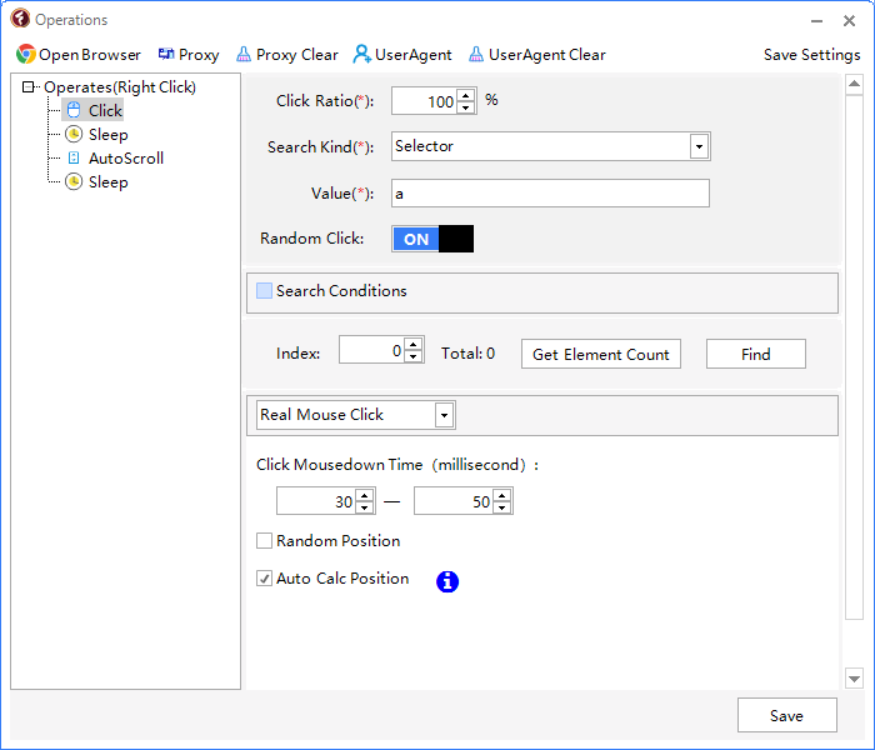
A person might pause to read, scroll through the description, and open another link that catches their attention. TBP lets you combine those kinds of actions into a browsing sequence.
For example, you can configure the browser to select a random link, pause, scroll through the next page, and wait again before continuing.
Random link clicks introduce variation into the browsing path. Instead of always following the same link, the browser can choose from the links matched by your configuration. This is useful when you want the session to explore different parts of a website.
You can also narrow the selection when the task should stay within a particular area, such as related products or a category section. That gives you flexibility to choose between broader exploration and a more directed route.
The aim is straightforward: give the visit a sequence of actions that reflects how someone might browse the page.
Combine Scrolling and Pauses for More Natural Pacing
A browsing session involves time as well as clicks.
People stop to look at images, read descriptions, compare details, and scroll down to see what else is available. Configurable scrolling and pauses help you represent those stages in an automated session.
In TBP, you can place pauses between actions and use AutoScroll to move through the content. A product page might call for a pause near the main details, followed by scrolling into additional information or recommendations.
The tutorial shows this progression in the recorded browsing session, moving from the product area to content farther down the page.
You decide how to arrange the actions and how long to pause. This makes it possible to adapt the browsing sequence to the structure of the website, whether you are working with a short product page or a longer page containing several sections.
Shape the Workflow Around Your Website
Different websites invite different browsing behavior.
On a product page, you may want to explore related items. On a category page, you may want to open a product and continue browsing from there. On a content-rich page, scrolling and reading pauses may be more useful than frequent clicks.
TrafficBotPro’s Operations editor lets you arrange the actions to suit that journey. You can begin with a short sequence, watch how it behaves, and refine it as needed.
For example, a simple workflow could:
- Search Google for a product keyword.
- Open a Shopping result matching the selected merchant.
- Pause on the destination page.
- Scroll through the content.
- Follow a relevant or randomly selected link.
- Continue browsing with another pause.
The actions remain configurable, so you can change the route without rebuilding the entire task.
Bring Search and Page Interactions Together
The practical advantage of this setup is that the steps work together.
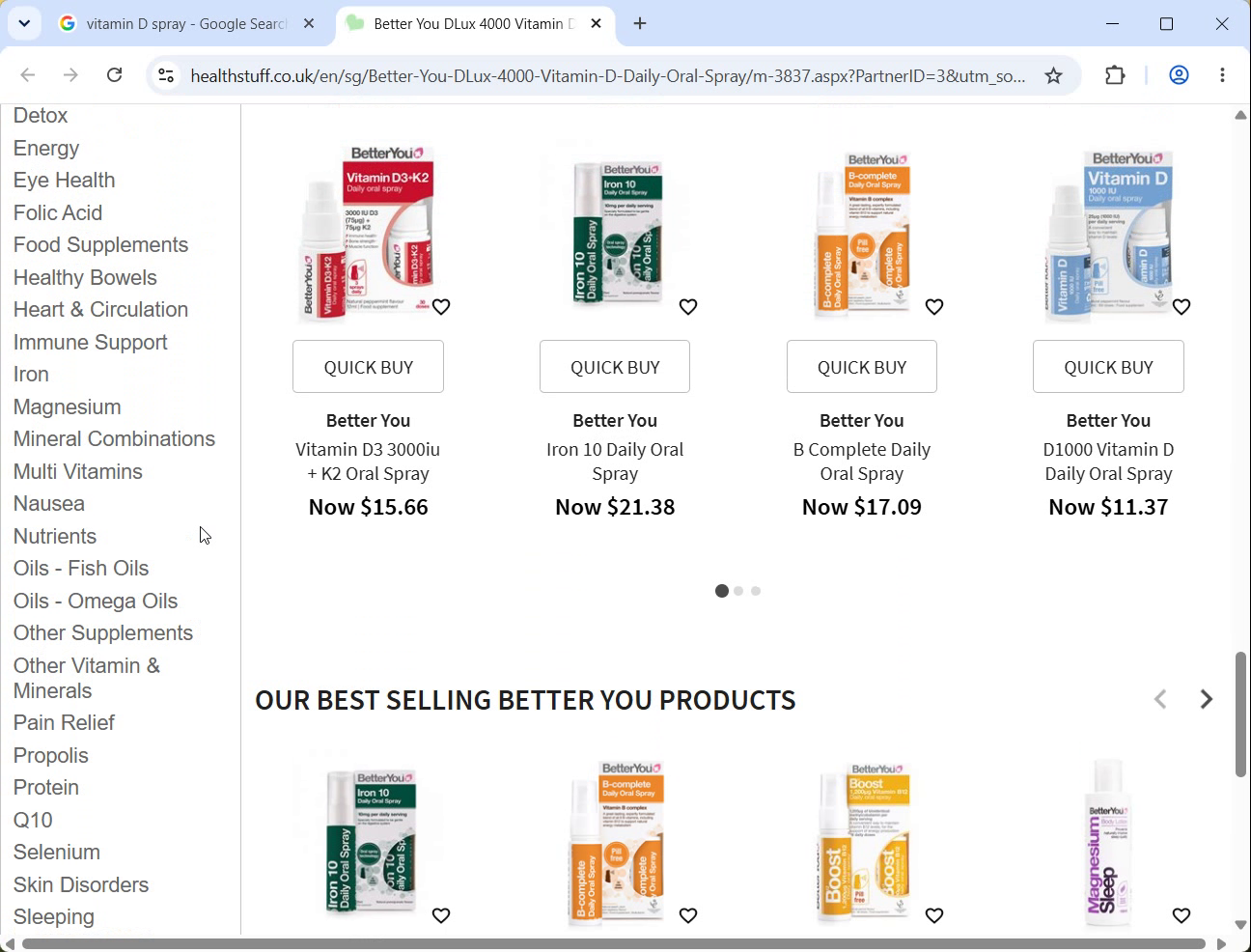
The keyword defines the search. The Merchant ID guides the match. Real Click handles the interaction with the result. Page operations then extend the session with further browsing.
For users who repeatedly perform these sequences, this reduces the amount of manual work involved in moving from search results to website navigation.
It also gives you a clear way to review the full journey. You can see which result was selected, where the browser arrived, and how the following actions behaved. Keeping the browser environment and task settings consistent helps when comparing runs or refining the workflow.
The result is a reusable browsing sequence with control over its destination, actions, and pacing.
Getting Started with Google Shopping Automation
Start with one keyword, one merchant, and a short browsing sequence.
Find the Merchant ID, enter it into the Shopping task configuration, and review the search and click settings. Then add the actions you want the browser to perform after arrival.
Run the sequence and watch the result. Check that the merchant match is correct, the destination opens as expected, and the page actions follow a useful path.
Once the basic flow works, you can refine the link selection, scrolling, and pauses to better fit the browsing experience you want to simulate.
TrafficBotPro connects Google Shopping searches with flexible, human-like browser interactions—from the first search to continued exploration on the website.
Explore TrafficBotPro and build your Google Shopping browsing workflow.