



TrafficBotPro VPS Cloud Control - Multi-VPS Batch Task Management: Efficient Task Distribution & Parallel Execution (2026 Guide)
When running large-scale traffic campaigns, SEO tests, or web automation projects, a single machine quickly hits performance. This is where multi-VPS distributed execution becomes essential.
TrafficBotPro V5’s Cloud Control Manager is specifically built for this. It allows you to centrally manage multiple VPS, distribute tasks automatically, and run them in parallel — dramatically boosting efficiency and scale.
Why Use Multi-VPS Parallel Execution?
- Overcome local hardware limits (CPU, RAM, threads)
- Utilize diverse IPs from different locations for higher realism and success rates
- Run hundreds or thousands of tasks simultaneously
- Enable true 24/7 automated operations
- Test different fingerprint + proxy combinations easily
Introducing Cloud Control Manager
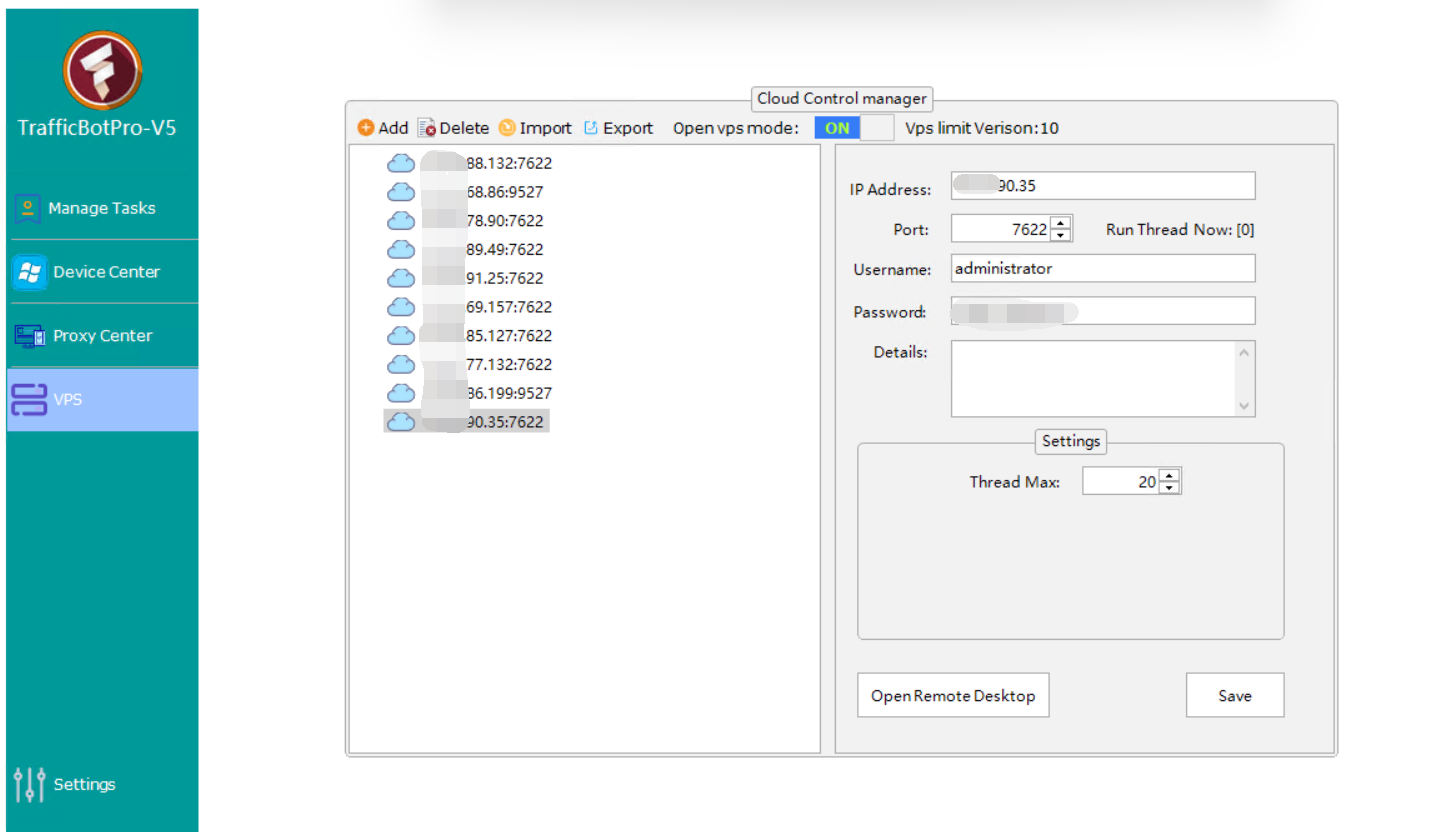
Go to the left menu → VPS to access the powerful Cloud Control Manager:
Key features include:
- Bulk Add / Import VPS (supports Excel or text import)
- Centralized VPS list with status overview
- One-click Remote Desktop connection
- Automatic Task Distribution from main program to VPS
- Per-VPS thread control
- Unified monitoring and management
Step-by-Step: How to Set Up Multi-VPS Parallel Task Running
Step 1: Add Your VPS
- Click Add for a single VPS or Import for bulk upload.
- Fill in the details:
- IP Address
- Port (default 7622)
- Username (usually administrator)
- Password
- Save — your VPS will appear in the cloud list.
Step 2: Enable VPS Mode
- Turn Open VPS Mode to ON
- Set your VPS limit version according to your license
Step 3: Create & Distribute Tasks
- Go to Manage Tasks to create or edit your automation tasks (keyword search, clicks, browsing, AdSense, etc.).
- Select VPS Distributed Mode and choose target VPS.
- The main program will automatically distribute tasks across connected VPS.
- Set Thread Max individually for each VPS based on its specs (e.g., 15–25 threads for a 16 GB RAM VPS).
Step 4: Run & Monitor
- Start the tasks from the main interface.
- Monitor real-time execution status across all VPS from one central dashboard.
- Pause, stop, or adjust tasks globally without logging into each VPS.
Real-World Performance Comparison
| Running Method | Daily Task Volume | Browser Diversity | Stability | Management Difficulty |
|---|---|---|---|---|
| Single Machine | Medium | Excellent | High | Low |
| Multi-VPS Parallel (TrafficBotPro) | Significantly Higher | Excellent | High | Medium (Simplified by TrafficBotPro) |
With TrafficBotPro’s VPS system, users commonly report 5–10x higher execution efficiency, more natural behavior simulation, and significantly better anti-detection results.
Pro Tips for Best Results
- Load Balancing: Distribute tasks across VPS by region or performance.
- Fingerprint Consistency: Assign unique device fingerprints per VPS.
- Scheduled Tasks: Use Automation features to run jobs on a timer.
- Resource Monitoring: Regularly check CPU/RAM usage on each VPS.
Best Practices & Notes
- Ensure that port "7622" is open, or you can directly disable the VPS firewall.
- Keep TrafficBotPro updated to enjoy the latest VPS management and anti-detection improvements.
Ready to scale your automation with multi-VPS power? Try TrafficBotPro V5 Now